

Understand laptop configuration: make smart choices
TL;DR:
- Laptop configuration includes all hardware components working together, not just the processor.
- Upgrading RAM and storage is often impossible in modern slim laptops, making initial choice crucial.
- Balanced configurations with upgradeability and appropriate specs ensure better long-term performance and value.
You’ve done your research, compared prices, and narrowed it down to two laptops. Same brand, same advertised processor, similar price. You buy one, your friend buys the other, and somehow their machine runs circles around yours. This is one of the most common frustrations among laptop buyers in Singapore, and it happens because most people shop by processor name alone. Laptop configuration is the full picture: how every component works together to shape real-world speed, battery life, and longevity. This guide breaks down what configuration actually means, which parts matter most, and how to make a decision you won’t regret.
Table of Contents
- What does laptop configuration mean?
- The essential components: CPU, RAM, and storage explained
- Comparing laptop configurations: It’s not just about the processor
- Practical tips: Choosing the right configuration for your needs
- Our take: Why configuration is the most overlooked secret to laptop satisfaction
- Find the perfect laptop configuration at Sim Lim Square
- Frequently asked questions
Key Takeaways
| Point | Details |
|---|---|
| Configuration goes beyond CPU | The right combination of RAM and storage can matter more for real-life performance than the processor alone. |
| Upgradeable parts are crucial | Buying a laptop with upgradeable RAM or storage can save headaches and money in the future. |
| Balance over specs | Choose a laptop with balanced components based on your actual needs instead of only chasing high-end specs. |
| Compare before buying | Always compare configurations and shop around to avoid paying more for features you don’t need. |
What does laptop configuration mean?
Laptop configuration refers to the specific combination of hardware components installed in a device at the point of manufacture or sale. It’s not just one spec. It’s the entire arrangement of processor, memory, storage, graphics, display, battery, and ports working as a system. When you walk into a store and see two laptops at the same price, the difference between a satisfying purchase and a frustrating one almost always comes down to how those components are balanced.
Think of it like a car. Two cars can share the same engine, but if one has worn tires, a weak transmission, and no air conditioning, the driving experience is completely different. Your laptop is no different. A fast processor paired with slow storage and minimal memory will underperform a slower chip paired with a solid-state drive and generous RAM.
The key components that make up a laptop configuration include:
- CPU (Central Processing Unit): The main processor that handles calculations and runs your programs
- GPU (Graphics Processing Unit): Handles visual output, from basic display rendering to gaming and video editing
- RAM (Random Access Memory): Short-term memory your laptop uses to run active programs simultaneously
- Storage: The drive where your files and operating system live, either an SSD (solid-state drive) or HDD (hard disk drive)
- Display: Screen resolution, size, refresh rate, and panel type all affect usability
- Battery: Capacity and efficiency determine how long you can work unplugged
- Connectivity: USB ports, Thunderbolt, Wi-Fi standard, and Bluetooth version affect what you can connect
Choose your RAM and SSD configuration wisely at the point of purchase. Many modern laptops, especially thin and light models, have these components soldered directly to the motherboard, meaning you cannot upgrade them later. What you buy is what you’re stuck with for the life of the device.
This is why configuration matters so much more than any single spec. RAM and storage are central to real-world performance, and shopping smart means checking whether those parts can be upgraded or are permanently fixed. If you’re planning to browse tech deals in Sim Lim Square, understanding configuration helps you spot genuine value versus a flashy spec sheet that hides weak links.
Configuration also affects future-proofing. A laptop you buy today needs to handle the software demands of three to five years from now. Choosing a balanced configuration at purchase is the single best way to protect that investment.
The essential components: CPU, RAM, and storage explained
With a clear definition in hand, it’s time to dig deeper into the main building blocks and understand how each one shapes your daily experience.
The CPU is the brain. It determines how fast your laptop processes instructions, runs applications, and handles background tasks. But here’s what most buyers miss: the same CPU model can perform very differently depending on how it’s paired with other components. Two laptops with the same CPU family can feel noticeably different in speed depending on whether they use integrated or dedicated graphics, how much RAM is installed, and what type of storage they use.

RAM is your laptop’s workspace. More RAM means more programs can run at once without slowdown. 8GB is the minimum you should consider in 2026, but 16GB is the sweet spot for most users. If you’re doing video editing, running virtual machines, or keeping 30 browser tabs open, 32GB starts to make sense.
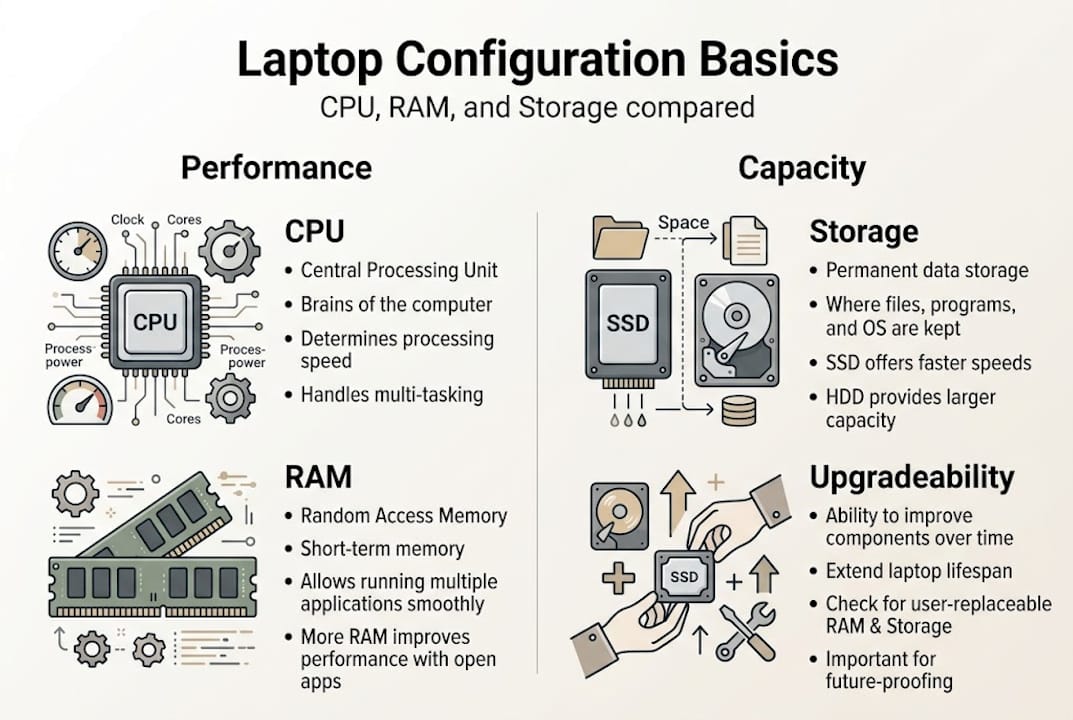
Storage type is one of the most impactful and most overlooked factors. An SSD loads your operating system in seconds and opens files almost instantly. An HDD (hard disk drive) is significantly slower. Even within SSDs, there are differences: NVMe SSDs are much faster than SATA SSDs. Buying a laptop with a fast CPU but a slow HDD is like hiring a sprinter and making them run in sand.
Here’s a quick reference for different user types:
| User type | Recommended CPU | RAM | Storage | Expected performance |
|---|---|---|---|---|
| Student | Intel Core i5 / Ryzen 5 | 8GB to 16GB | 256GB to 512GB NVMe SSD | Smooth for documents, browsing, video calls |
| Work from home | Intel Core i5 to i7 / Ryzen 5 to 7 | 16GB | 512GB NVMe SSD | Handles multitasking, video conferencing, light creative work |
| Creative professional | Intel Core i7 / Ryzen 7 or 9 | 32GB | 1TB NVMe SSD | Smooth for video editing, design, rendering |
| Gamer | Intel Core i7 / Ryzen 7 | 16GB to 32GB | 512GB to 1TB NVMe SSD | Requires dedicated GPU alongside CPU |
To read a spec sheet without getting lost, follow these steps:
- Identify the CPU generation and tier. An “i5” from three years ago is not the same as an “i5” from this year. Look for the generation number in the model name.
- Check RAM capacity and type. Look for DDR5 or LPDDR5 in newer models. More capacity and faster type both matter.
- Confirm storage type. Look for “NVMe” or “PCIe” to confirm it’s a fast SSD. “SATA SSD” is slower. “HDD” or “5400 RPM” is the slowest option.
- Note whether RAM and storage are upgradeable. Search the specific model name plus “upgradeable RAM” before buying.
- Check the GPU. Integrated graphics are fine for everyday use. Dedicated GPUs are needed for gaming, 3D work, or video editing.
Pro Tip: Always check if RAM or storage is upgradeable before you buy. Search the exact model number online. Many slim laptops in 2026 have soldered RAM, which means 8GB today means 8GB forever. Spending a little more upfront for 16GB can save more on electronics in the long run by avoiding an early replacement.
Comparing laptop configurations: It’s not just about the processor
When the options look confusing, how do you actually compare them side by side? The key is to stop treating the CPU as the headline act and start reading the full supporting cast.
Consider this real scenario: two laptops, both listed as featuring an Intel Core i7 processor, both priced around SGD 1,400. On the surface, they look identical. But look closer:
| Feature | Laptop A | Laptop B |
|---|---|---|
| CPU | Intel Core i7 (latest gen) | Intel Core i7 (latest gen) |
| RAM | 8GB LPDDR5 (soldered) | 16GB DDR5 (upgradeable) |
| Storage | 512GB SATA SSD | 512GB NVMe SSD |
| GPU | Integrated Intel Iris Xe | Dedicated NVIDIA RTX 4050 |
| Battery | 45Wh | 72Wh |
| Display | 1080p 60Hz | 1080p 144Hz |
Laptop A looks like a deal. Laptop B is clearly the better configuration. The RAM in Laptop A is half the capacity and permanently fixed. The storage is a slower SATA SSD. There’s no dedicated GPU for any visual workload. And the battery will drain faster. These differences directly affect your daily experience, not just benchmark scores.
When comparing spec sheets, look for these factors:
- Upgradeability: Can you add RAM or swap the SSD later? If not, buy more upfront.
- Multitasking headroom: 8GB RAM will feel tight within two years as software gets heavier.
- Graphics requirements: If you edit photos, stream video, or play any games, integrated graphics will limit you.
- Storage speed: NVMe SSDs are noticeably faster for file transfers, boot times, and app launches.
- Battery capacity: Measured in watt-hours (Wh). Higher is better for all-day use.
Upgradeable parts matter more than most buyers realize, especially for long-term satisfaction. It’s also worth thinking about the full package. A great laptop paired with the right laptop bag essentials protects your investment and makes daily carry much easier.
Pro Tip: Don’t chase the biggest number. A laptop with a top-tier CPU but 8GB of soldered RAM and a slow SSD will feel worse in daily use than a mid-range CPU paired with 16GB of fast RAM and an NVMe drive. Balance across all components is what creates a satisfying experience.
Practical tips: Choosing the right configuration for your needs
Now that you can compare configurations, here’s how to match them to your actual situation. The goal is to avoid both overspending on specs you’ll never use and underspending on parts that will frustrate you within a year.
Follow this process based on your primary use case:
- Student: Prioritize battery life and portability. An Intel Core i5 or AMD Ryzen 5 with 16GB RAM and a 512GB NVMe SSD covers everything from assignments to Zoom calls. Avoid models with only 8GB soldered RAM.
- Work from home: You need multitasking power. Go for 16GB RAM minimum, a fast NVMe SSD, and a display with good color accuracy. A dedicated GPU isn’t necessary unless your work involves design or video.
- Creative professional: RAM and GPU matter here. 32GB RAM, a dedicated GPU with at least 6GB VRAM, and a 1TB NVMe SSD are baseline requirements for smooth video editing or 3D rendering.
- Gamer: The GPU is your priority. A dedicated NVIDIA or AMD graphics card, 16GB RAM, and a 144Hz display make a real difference. RAM capacity matters for running modern games alongside background apps.
How much RAM do most users actually need? For everyday tasks like web browsing, documents, and streaming, 8GB technically works but feels increasingly tight as browser tabs and apps grow heavier. 16GB is the practical sweet spot for most users in 2026, covering everything from video calls to light photo editing without slowdown.
Common mistakes to avoid when choosing a configuration:
- Overpaying for a premium CPU while ignoring RAM: A fast processor bottlenecked by 8GB of slow RAM will disappoint you.
- Ignoring storage speed: Buying a laptop with an HDD in 2026 is almost always a mistake. Even a budget NVMe SSD is dramatically faster.
- Skipping future-proofing: Software gets heavier every year. A configuration that feels adequate today may struggle in two years.
- Not checking local stock configurations: Retailers in Singapore, including stores at Sim Lim Square, sometimes carry configurations that differ from what brand websites advertise globally. The same model number might come with different RAM or storage depending on the regional variant. Always confirm the exact configuration with the seller before purchasing.
- Forgetting about ports: If you need HDMI, USB-A, or SD card slots, check before you buy. Thin laptops often drop these in favor of USB-C only.
When you find top tech deals in person, you have the advantage of asking the seller directly about upgradeability, regional configurations, and warranty terms. That conversation is worth more than any spec sheet.
Our take: Why configuration is the most overlooked secret to laptop satisfaction
Most tech guides spend 80% of their time talking about processors and almost none talking about the full configuration picture. We’ve seen this play out repeatedly with buyers in Singapore who walk into Sim Lim Square with a CPU model in mind and walk out with a machine that disappoints them within six months.
Here’s the uncomfortable truth: a flashy processor paired with 8GB of soldered RAM and a slow SSD is a worse purchase than a modest chip with 16GB of fast, upgradeable memory. The CPU is the easiest spec to market. It’s the one on the box, in the ads, and in the headlines. But it’s rarely the component that determines whether your laptop feels fast or frustrating on a Tuesday afternoon with 12 tabs open and a video call running.
The “good deal trap” is real. Laptops sold at aggressive discounts often cut corners on RAM and storage speed while keeping the processor name prominent. That’s the spec that sells. The parts that get quietly downgraded are the ones you feel every day.
Our honest advice: treat configuration as your primary decision filter, not an afterthought. Before you ask “which processor is better,” ask “is the RAM upgradeable, what type of SSD is this, and how does the GPU match my actual needs?” That shift in thinking will save you money and frustration.
Find the perfect laptop configuration at Sim Lim Square
Ready to put your knowledge into practice? Sim Lim Square is Singapore’s best destination for comparing laptop configurations in person, across multiple brands and price points, all in one place.
At Sim Lim Square, you can physically test machines, ask sellers about upgradeability, and compare configurations side by side before committing. Use the Sim Lim Square Insider platform to plan your visit, browse store listings, and spot current deals. Start with Basement 1 stores for a wide selection of laptops and peripherals, or head up to Level 3 stores for more specialized options. Walking in with a clear understanding of configuration means you’ll ask better questions and leave with a laptop that genuinely fits your needs.
Frequently asked questions
What does laptop configuration include?
Laptop configuration covers the full combination of parts installed at purchase, including CPU, RAM, storage, graphics, display, battery, and ports. Upgradeable components like RAM and storage are especially important to check before buying.
Can you upgrade RAM or storage later?
Some laptops allow RAM or storage upgrades through accessible slots, but many modern slim models have these components soldered to the board, making upgrades impossible, so always verify before purchasing.
Why do two laptops with the same processor perform differently?
Differences in RAM capacity, storage speed, and GPU type directly affect daily performance, and RAM and GPU configuration can make the same CPU feel fast in one laptop and sluggish in another.
How much RAM is enough for most users?
8GB covers basic everyday tasks, but 16GB is the smarter choice for multitasking, video calls, and light creative work, giving your laptop more room to handle heavier software as it evolves.
Recommended
- Top tech deals in Sim Lim Square: save more on electronics – Sim Lim Square Insider
- Affordable Startup Spaces | Lease at Sim Lim Square Singapore – Sim Lim Square Insider
- Sim Lim Square levels explained: navigate Singapore’s tech hub – Sim Lim Square Insider
- Top 5 Ababtools.com Alternatives 2026 – Sim Lim Square Insider