

Laptop upgrades: Boost performance and shop smart in Singapore
TL;DR:
- Upgrading hardware like SSDs and RAM significantly improves laptop speed and user experience.
- In Singapore, local stores at Sim Lim Square offer accessible, compatible, and cost-effective upgrade options.
- Proper preparation, compatibility checks, and local expert assistance ensure safe, effective laptop upgrades.
Your laptop doesn’t have to feel sluggish forever. Most people assume upgrading a laptop requires technical expertise or an expensive trip to a service center, but that’s simply not true. A targeted hardware enhancement, like swapping in a solid-state drive or adding more RAM, can genuinely transform how your machine feels to use every single day. For shoppers in Singapore, the upgrade scene is especially vibrant, with dedicated tech malls, knowledgeable store staff, and competitive pricing making the whole process far more accessible than it sounds.
Table of Contents
- Understanding laptop upgrades: Scope and impact
- SSD vs RAM upgrades: Which is right for you?
- How to prepare for a laptop upgrade in Singapore
- Shopping tips for laptop upgrades: Avoiding pitfalls and getting deals
- Our take: What most guides miss about laptop upgrades
- Find the best deals and expert help for your laptop upgrade
- Frequently asked questions
Key Takeaways
| Point | Details |
|---|---|
| SSD yields biggest speed | Upgrading from HDD to SSD offers the most dramatic performance boost. |
| Check compatibility first | Always verify your laptop’s specs before buying upgrade parts. |
| Smart shopping saves money | Comparing deals at local Singapore stores ensures you get genuine value. |
| Preparation prevents problems | Backing up data and checking warranties avoids upgrade headaches. |
| Expert advice adds value | Local tech experts can help you pick the right parts and avoid mistakes. |
Understanding laptop upgrades: Scope and impact
A laptop upgrade is any modification that improves how your machine performs, either by replacing aging hardware with faster components or by tuning software settings to get more out of what you already have. Hardware upgrades are the most impactful category, and the options available today cover a wide range of needs and budgets.
The most common hardware upgrades include:
- Solid-state drive (SSD): Replaces or supplements the original storage drive. SSDs are faster, quieter, and more reliable than traditional hard disk drives (HDDs).
- RAM (Random Access Memory): Adding more RAM allows your laptop to handle more tasks simultaneously without slowing down.
- Battery replacement: An aging battery can be swapped for a new one to restore portability.
- Display upgrade: Some laptops allow screen panel swaps, which can improve resolution, color accuracy, or refresh rate.
- Thermal paste reapplication: Replacing the compound between the processor and its cooler can lower temperatures and maintain better sustained performance over time.
Not every laptop allows all of these upgrades. Thin and light models often have soldered RAM and non-removable SSDs, so checking your laptop’s service manual before committing to anything is critical. However, many mainstream laptops, especially models popular in Singapore like Lenovo ThinkPads, HP ProBooks, and ASUS VivoBooks, are designed with user-upgradeable components in mind.
The performance impact of these upgrades is significant and backed by real data. Boot times improve dramatically when switching from an HDD to an SSD, with test results showing reductions from 4 minutes and 40 seconds down to just 45 seconds after combining an SSD with a RAM upgrade. App loading becomes 75% faster, and file transfers speed up by a remarkable 91%. NVMe SSDs, which use a faster interface than standard SATA SSDs, push these gains even further for users handling video editing, large datasets, or software development.
“Upgrading your storage and memory isn’t just about speed on paper. It changes how your laptop feels to use, turning frustration into fluency.”
For Singapore shoppers specifically, knowing where to find tech deals for laptop upgrades across local malls can mean the difference between a budget-friendly success and an expensive misstep. Local stores at places like Sim Lim Square carry a wide range of compatible parts, and many staff members can cross-reference your laptop model on the spot before you buy.
SSD vs RAM upgrades: Which is right for you?
Now that you understand the types of upgrades available, the most practical decision for most users comes down to two options: SSD or RAM. Both deliver real performance gains, but they target different bottlenecks.
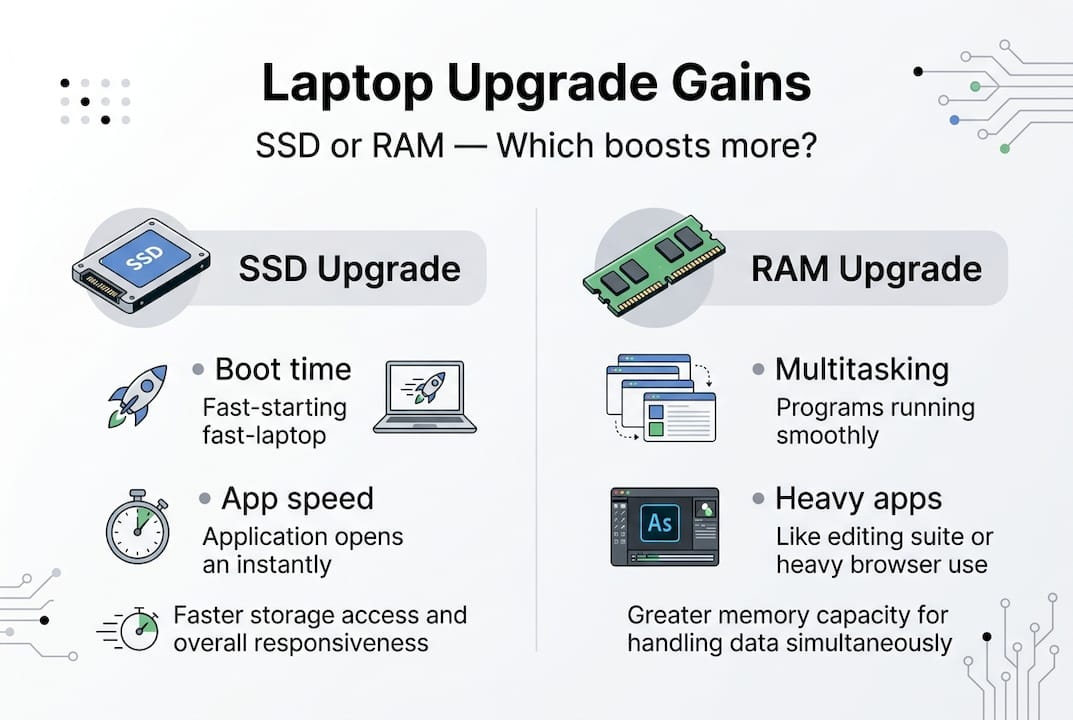
An SSD upgrade has the highest single-upgrade impact for laptops still running on an HDD. The reason is simple. An HDD uses spinning magnetic platters to read and write data, which is far slower than the flash memory inside an SSD. Every time your laptop boots up, opens an application, or accesses a file, it’s waiting on that slow mechanical drive. Replacing it eliminates the most common cause of laptop sluggishness.
A RAM upgrade, on the other hand, helps when your machine is already running on an SSD but still slows down under load. If you routinely have 15 or 20 browser tabs open, run multiple apps at once, or work with large spreadsheets and design files, adding RAM means your system stops having to borrow storage space (called “swap”) to handle overflow tasks. Swap is dramatically slower than actual RAM, so even an SSD can feel sluggish if your system constantly relies on it.
Here’s a comparison to help you assess which upgrade fits your situation:
| Situation | Recommended upgrade | Expected improvement |
|---|---|---|
| Laptop takes 3 to 5 minutes to boot | SSD (replace HDD) | Boot time drops by up to 90% |
| Apps crash or lag under moderate use | RAM upgrade | Stable multitasking, fewer slowdowns |
| Everything is slow, even after SSD | More RAM + SSD combo | Maximum overall speed boost |
| Laptop already has SSD, still sluggish | Check RAM (add more if under 8GB) | Noticeable multitasking improvement |
| Gaming or video editing on a tight budget | Prioritize RAM first if under 16GB | Better frame stability, faster renders |
Prioritize SSD over RAM if you’re still on an HDD since it’s the single biggest impact upgrade you can make. After that, RAM addresses the next major bottleneck. There’s also an important edge case: if your system has very little RAM (say, 4GB), it may offset the gains from even a brand-new SSD because constant swap usage keeps the drive working overtime on low-value tasks instead of speeding up your work.
Pro Tip: Before buying anything, download a free system information tool like CPU-Z or HWiNFO64. Both show you exactly how much RAM your system currently uses and whether your storage is an HDD or SSD. This takes under five minutes and prevents you from buying an upgrade you already have.

Checking compatibility is equally important. Not all RAM sticks work in every laptop. DDR4 and DDR5 are not interchangeable, and the speed rating (measured in MHz) should match what your motherboard supports. When in doubt, bring your laptop to a local store and ask a technician to check directly. This is one area where shopping in person at Sim Lim Square genuinely beats ordering from overseas websites with no local support.
How to prepare for a laptop upgrade in Singapore
With a clear idea of which upgrade suits your laptop best, the next step is planning the process carefully. Good preparation prevents wasted money, lost data, and voided warranties.
Follow these steps before opening your laptop or buying any parts:
- Identify your laptop’s exact model number. Find it on the sticker on the bottom panel or in the system settings under “About This PC” or “System Information.” This number is essential for checking compatibility.
- Read the service manual or manufacturer upgrade guide. Most major brands publish these online for free. They tell you exactly which components are upgradeable, how to open the chassis safely, and which part specifications are supported.
- Back up all your data. Whether you use an external drive or a cloud service, make a full backup before touching anything. Accidents happen even when following instructions carefully.
- Check your warranty status. Some manufacturers, like Apple and certain Dell XPS models, void the warranty the moment you open the chassis. Others, like Lenovo ThinkPads, are designed for easy user upgrades. Knowing this upfront saves you from an expensive mistake.
- Research compatible parts. Once you know your model number and which slots are available (M.2, SATA, DDR4 SO-DIMM, etc.), shop for parts that specifically match those specs.
- Compare prices locally. Singapore has excellent local options at Sim Lim Square and Funan Mall, where staff can help you verify compatibility in person.
Here’s a rough price guide for common laptop upgrades in Singapore as of 2026:
| Upgrade type | Budget option | Mid-range option | Premium option |
|---|---|---|---|
| SATA SSD (500GB) | SGD 45 to 60 | SGD 70 to 90 | SGD 100 to 130 |
| NVMe SSD (500GB) | SGD 60 to 85 | SGD 90 to 120 | SGD 130 to 180 |
| RAM upgrade (8GB DDR4) | SGD 30 to 45 | SGD 50 to 65 | SGD 70 to 90 |
| RAM upgrade (16GB DDR4) | SGD 55 to 80 | SGD 85 to 110 | SGD 120 to 150 |
| Battery replacement | SGD 40 to 70 | SGD 75 to 110 | SGD 120 to 200 |
These ranges reflect local market pricing and will vary based on brand and availability. The performance gains from SSD upgrades are substantial enough that even the budget tier delivers a transformative experience. Spending SGD 60 on a SATA SSD to replace an old HDD can make your laptop feel like a completely new machine.
For navigating local stores effectively, write down your laptop’s model number, current RAM configuration, and storage slot type before you go. This information makes every conversation with a store technician faster and more productive. Stores at Sim Lim Square tech deals sections are accustomed to helping customers match parts to specific laptop models, so don’t hesitate to ask directly.
Shopping tips for laptop upgrades: Avoiding pitfalls and getting deals
Knowing what to buy is only half the challenge. Buying the wrong part, paying too much, or missing a better deal nearby are common mistakes that cost Singapore shoppers real money every year.
Here are the most important pitfalls to watch out for:
- Buying non-compatible parts: This is the number one mistake. Always verify the interface type (M.2 NVMe vs M.2 SATA vs 2.5-inch SATA), form factor, and speed rating before purchasing. A part that looks identical can be completely incompatible.
- Skipping the return policy check: Some electronics stores in Singapore have strict no-return policies on opened components. Ask before you buy whether the store accepts returns if the part doesn’t work with your laptop.
- Being upsold on upgrades you don’t need: If a salesperson insists you need a 2TB NVMe SSD when your use case is basic documents and light browsing, push back. Start with what you genuinely need and scale up later if required.
- Ignoring brand quality differences: Not all SSDs are equal. Brands like Samsung, Western Digital, and Kingston have strong track records. Unbranded or deeply discounted drives from unfamiliar manufacturers carry higher failure risks.
- Forgetting to test before leaving the store: Some local stores will install and test the part while you wait. Always ask for this service when available.
The real advantage of shopping locally in Singapore is the ability to verify compatibility on the spot. An overseas online store might have lower listed prices, but returns are costly, shipping takes weeks, and there’s nobody to call when something doesn’t fit. Local stores, particularly at Sim Lim Square, can physically inspect your laptop, confirm which slots are free, and install the upgrade for you right there.
Pro Tip: Visit local stores on weekday afternoons if possible. Weekend crowds mean shorter staff attention and faster, more generic advice. A quieter visit allows the technician to spend real time checking your laptop against the parts in stock.
The upgrade data on SSD performance gains is useful to bring into negotiations. If a store is pushing a pricier NVMe drive for a laptop that only has a SATA slot, you can reference real-world benchmarks to make an informed decision. Knowing that a budget SATA SSD already delivers 75% faster app loading helps you resist unnecessary upsells with confidence.
To find genuine deals rather than inflated “sale” prices, check top deals on laptop upgrades before heading out. Comparing listed prices to what you see in-store takes minutes and can save you SGD 20 to 50 on a single part.
Our take: What most guides miss about laptop upgrades
Most upgrade guides focus entirely on the hardware specs and skip the single most important factor: compatibility checked by someone who actually knows your exact laptop model. Buying the “best” SSD on the market means nothing if it won’t physically fit your chassis or your motherboard can’t address it properly. We’ve seen shoppers walk away with expensive NVMe drives for machines that only support SATA, and there’s no satisfaction in a shiny new drive that sits unused in its box.
There’s also a persistent myth that local stores are always more expensive than overseas online retailers. In practice, when you factor in return shipping costs, import duties, and the lack of local warranty support, in-person shopping in Singapore often costs the same or less for the assurance you get. A technician who checks your part before you pay is worth more than a discount that disappears the moment a return is needed.
The best upgrade strategy isn’t about chasing the fastest specs. It’s about identifying your actual bottleneck, buying exactly what removes it, and having someone knowledgeable verify the fit before you spend a dollar.
Find the best deals and expert help for your laptop upgrade
Ready to put this knowledge to use? Sim Lim Square Insider makes it easier to plan your upgrade trip with confidence. Whether you’re comparing SSD options, figuring out which store carries the RAM your laptop needs, or just trying to understand what a fair price looks like in the Singapore market, we’ve got you covered.
Explore our store directories, video walkthroughs, and curated deal guides to find exactly what your laptop needs before you leave home. Our guides on the best local tech deals are updated regularly to reflect real pricing across Sim Lim Square stores. Stop guessing and start shopping with a clear plan, the right parts, and the local expertise that no overseas website can replicate.
Frequently asked questions
Will upgrading SSD or RAM void my laptop’s warranty?
Upgrading SSD or RAM may void your warranty depending on the laptop brand, so always check your manufacturer’s terms before opening the chassis. Brands like Lenovo often allow user upgrades, while others like Apple typically do not.
How much faster does an SSD upgrade make a laptop compared to HDD?
An SSD upgrade can reduce boot times from over 4 minutes to under a minute, with app loading improving by 75% and file transfers by 91%. The real-world difference is immediately noticeable from the very first startup.
Can I upgrade both SSD and RAM at the same time?
Yes, upgrading both SSD and RAM together delivers maximum overall performance improvement, but you must verify your laptop supports both upgrades before purchasing. Check available slots and compatibility using your laptop’s model number and service manual.
Where is the best place to shop for laptop upgrades in Singapore?
Sim Lim Square and Funan Mall are both excellent destinations for laptop upgrade components, offering competitive pricing and in-person technical support. Local stores can verify compatibility on the spot, which is a major advantage over online-only retailers.
Do I need technical skills to upgrade my laptop?
Basic SSD and RAM swaps are beginner-friendly and typically involve removing a few screws and sliding in a new component. More complex upgrades, like display or battery replacements on tightly built chassis, may benefit from professional installation at a local service center.
Recommended
- Top tech deals in Sim Lim Square: save more on electronics – Sim Lim Square Insider
- Sim Lim Square levels explained: navigate Singapore’s tech hub – Sim Lim Square Insider
- Sim Lim Square Insider | Comparing Tech Deals with Funan Mall
- Sim Lim Square store management: 5 strategies for success – Sim Lim Square Insider