

SSD Storage in 2026: Your Complete Buying Guide
TL;DR:
- Solid-state drives have become the default storage option in modern computers due to their faster speeds and greater durability. They offer significantly higher read/write speeds than traditional hard drives, resulting in quicker boot times and more responsive applications. For most users, a minimum of 1TB capacity is recommended, with larger sizes suited for gaming, creative work, or extensive data archives.
Solid-state drives have replaced spinning hard drives as the default storage technology in modern computers, and for good reason. An SSD is a non-volatile storage device using NAND flash memory, with no moving parts, delivering read/write speeds of 200 MB/s to over 5,000 MB/s compared to a typical HDD’s 80–160 MB/s range. That gap is not marginal. It translates directly into faster boot times, near-instant app launches, and a computer that simply feels alive.
The core advantages of SSD storage at a glance:
- Speed: Dramatically faster than HDDs for both sequential and random access workloads
- Durability: No spinning platters or mechanical arms to fail from drops or vibration
- Quiet operation: Completely silent, unlike HDDs with their audible spin-up noise
- Energy efficiency: SSDs consume less power, which extends battery life and reduces cooling costs in data centers
- Compact form factor: Enables thinner laptops, tablets, and small form-factor desktops
What types of SSD storage are available in 2026?
The SSD market in 2026 covers a wide range of form factors and interfaces, each suited to different systems and use cases.
Internal SSDs connect directly to your motherboard and come in three main configurations:
- SATA SSDs (2.5-inch): The most widely compatible option, capped at roughly 550 MB/s due to the SATA 3.0 interface ceiling. Still useful for upgrading older laptops and desktops.
- M.2 NVMe SSDs: The dominant type in modern builds. These small, rectangular drives (typically 80mm long by 22mm wide, called the 2280 form factor) use the NVMe protocol over PCIe, reaching read speeds above 3,000 MB/s on PCIe 4.0 and beyond 7,000 MB/s on PCIe 5.0 drives.
- PCIe add-in card SSDs: Less common in consumer builds, but used in workstations requiring maximum throughput.
External SSDs connect via USB or Thunderbolt and are designed for portability. USB 3.2 Gen 2x2 models deliver real-world speeds that leave external HDDs far behind. Thunderbolt-connected drives push even higher, making them practical for video editors moving large files between machines. For a closer look at what’s available at retail, Simlimsquareinsider covers portable SSD options worth considering in 2026.
Pro Tip: Before buying any M.2 NVMe drive, check your motherboard manual or the manufacturer’s compatibility tool. Slot length and PCIe generation both matter. A PCIe 5.0 drive in a PCIe 3.0 slot will work, but only at PCIe 3.0 speeds.
Hybrid SSHDs, which pair a small flash cache with a spinning platter, still exist but have largely been displaced by falling SSD prices. They are rarely worth considering for a new build today.
How much SSD capacity do you actually need?
Capacity choice is where most buyers either overspend or regret going too small within six months. The practical minimum for any PC build is 1TB. Drives with 250GB–500GB may suit secondary cache applications or older laptops, but 1TB is the minimum for primary use.
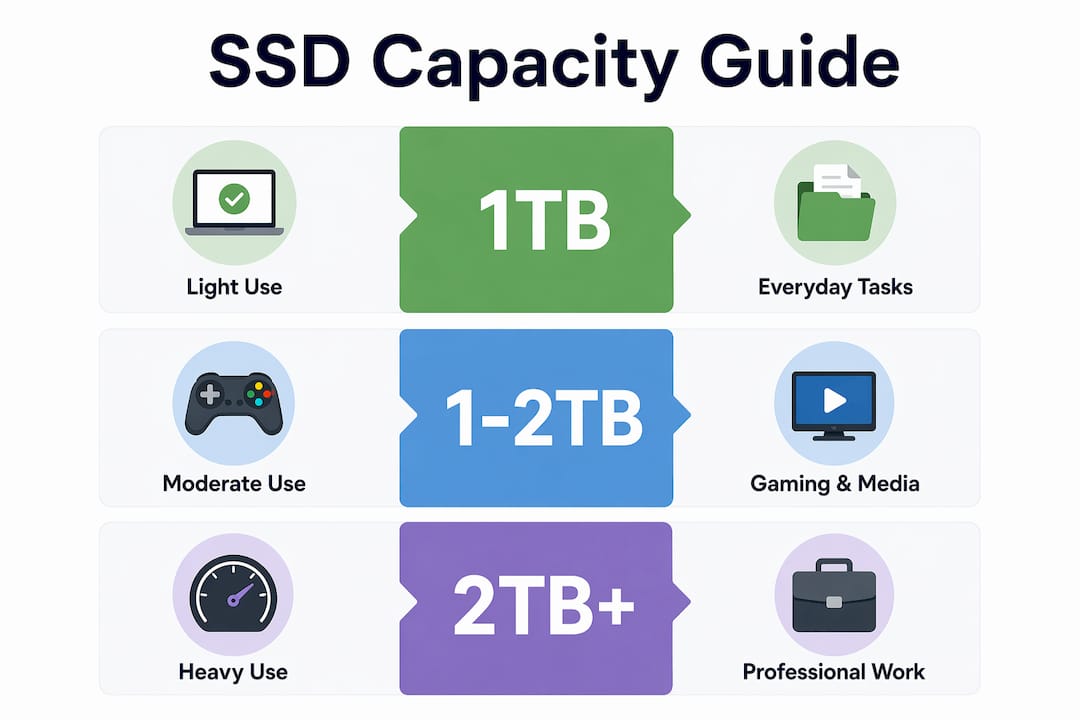
| Use Case | Recommended Capacity | Notes |
|---|---|---|
| Casual / light use | 1TB | Web, email, streaming, light office work and headroom for updates |
| Average PC build | 1TB | Windows, apps, and a game library |
| Gaming | 2TB | Modern games regularly exceed 100GB each |
| Professional workstation | 2TB–4TB | Video editing, 3D rendering, large project files |
| Data-heavy / creative | 4TB+ | High-res video archives, RAW photo libraries |
Two practical points worth keeping in mind. First, SSDs slow down as they approach full capacity, so leaving some free space is important to maintain performance is not just good hygiene, it actively maintains performance. Second, prices on 4TB drives have dropped considerably in 2026, making the jump from 2TB to 4TB more affordable than it was even a year ago.
For gaming PC builds specifically, Simlimsquareinsider’s guide to gaming PC components covers capacity recommendations alongside other hardware decisions.
SSD vs HDD: what the performance gap actually means
Speed is the headline, but the full picture is more nuanced. SSDs deliver dramatically lower latency because there is no mechanical read/write head to physically move across a spinning platter. That reduction in access time is what makes an SSD feel fast in everyday use, not just in benchmark numbers.
HDDs still hold real advantages in specific scenarios:
- Cost per terabyte: HDDs are generally more affordable per gigabyte than SSDs, making them the practical choice for bulk storage, backups, and media archives.
- Long-term cold storage: SSDs can lose data if left unpowered for one to two years, while HDDs hold data reliably in cold storage for much longer.
- Predictable wear: HDDs fail mechanically and usually give warning signs. SSD controller failures can be sudden and unrecoverable.
On the enterprise side, SSDs reduce total cost of ownership through energy savings and higher operational efficiency, even though the upfront cost per terabyte is higher. SSDs consume less power and generate less heat than HDDs, which cuts both energy bills and cooling costs in data centers.
The smartest setup for most users combines both technologies: an SSD for the operating system and active applications, and an HDD for large data archives and backups. You get the speed where it matters and the capacity where cost is the priority.
Key considerations when buying an SSD
Buying the right drive means looking past the marketing name on the box. Performance varies significantly within product lines depending on the controller and NAND flash generation, so verify the hardware specs rather than relying on branding alone.
Key factors to evaluate:
- Interface and compatibility: SATA tops out around 550 MB/s. PCIe 4.0 NVMe drives reach 7,000+ MB/s. Your motherboard determines which you can actually use.
- TBW (terabytes written): This endurance rating tells you how much data the drive can write over its lifetime. A 2TB PCIe 4.0 drive with 1,200 TBW offers meaningfully better longevity than one rated at 800 TBW.
- Warranty length: Five years is the gold standard. Three-year warranties are common on budget drives and some newer models. Check whether the warranty expires at TBW or time, whichever comes first.
- NAND type: SLC offers the best endurance but costs more. MLC balances performance and durability. TLC is the most common in consumer drives. QLC is cheapest but has the lowest write endurance.
- Bundled software: Tools like Samsung Magician handle health monitoring, firmware updates, and data migration. Good software matters more than most buyers realize.
- Pricing context: SSD prices have risen since late 2025 due to a global memory shortage driven partly by AI data center demand. Budget accordingly and compare cost per gigabyte across capacities rather than sticker price alone.
Pro Tip: Keep 10–15% of your SSD free at all times. A drive running at 95% capacity writes more slowly and wears faster than one with headroom. If you are consistently near full, upgrade capacity rather than managing files constantly.
Western Digital and SanDisk (now sold under the Sandisk Optimus branding for some models) are among the most widely available brands in the US market, with drives spanning budget SATA to high-end PCIe 5.0 NVMe.
How to install and set up an SSD
Installing an SSD is one of the more approachable hardware upgrades, even for first-timers. The process differs slightly between internal and external drives.
For an internal M.2 NVMe SSD:
- Back up all data before touching anything.
- Power down and unplug the computer.
- Locate the M.2 slot on the motherboard (check the manual for slot position and supported lengths).
- Insert the drive at a slight angle, press it flat, and secure it with the retention screw.
- Boot into BIOS to confirm the drive is detected, then install your operating system or clone your existing drive.
For a SATA 2.5-inch SSD:
The process is similar, but you connect both a SATA data cable and a power cable. Most laptops have a single 2.5-inch bay; desktops may have several. Cloning software, often bundled with the drive, lets you copy your existing system without reinstalling Windows from scratch.
For an external SSD:
Plug it in via USB-C or Thunderbolt, format it to your preferred file system (NTFS for Windows, APFS for Mac, or exFAT for cross-platform use), and it is ready. No screwdrivers required.
Enabling TRIM support in your operating system after installation helps the drive manage worn cells and maintain write performance over time. On Windows 10 and 11, TRIM is enabled by default for SSDs.
Common use cases and applications for different SSD types
Different SSD types genuinely suit different workloads, and matching the drive to the job makes a real difference.
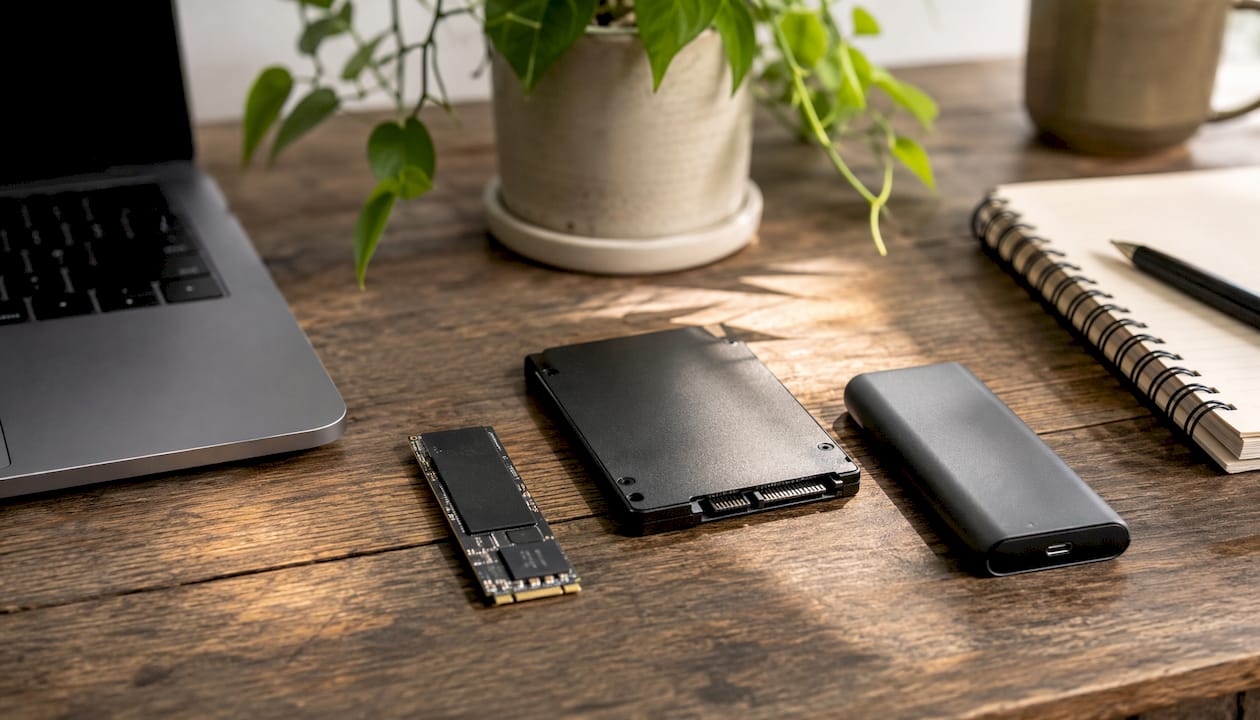
M.2 NVMe (PCIe 4.0 or 5.0): The right choice for operating system drives, gaming, video editing, and any workload where load times or file transfer speeds are felt directly. A game that takes 45 seconds to load from an HDD can load in under 10 seconds from a fast NVMe drive.
SATA SSD (2.5-inch): Best for upgrading older laptops and desktops that lack M.2 slots. The speed jump from an HDD is dramatic even at SATA speeds, and the installation is a direct swap. For laptop upgrades, a SATA SSD is often the most cost-effective performance improvement available.
External USB SSD: Ideal for photographers and videographers moving files between machines, for system backups, and for carrying a working environment between locations. Rugged external models handle travel well.
Enterprise NVMe SSDs: Built with overprovisioning and advanced wear-leveling to handle sustained write workloads that would wear out a consumer drive quickly. SMART attribute monitoring lets IT teams track health and predict failures before they happen.
Maintenance tips and best practices for SSDs
SSDs need less maintenance than HDDs, but a few habits extend their life considerably.
Keep the drive below 90% capacity. As covered earlier, the 10–15% free space rule is not just a performance tip. It gives the drive’s wear-leveling algorithm room to distribute writes evenly across cells, which directly extends lifespan.
Enable TRIM. On Windows, open Command Prompt as administrator and run fsutil behavior query DisableDeleteNotify. A result of 0 means TRIM is active. On macOS, TRIM is enabled automatically for Apple-branded SSDs and can be enabled for third-party drives via Terminal.
Avoid unnecessary write-heavy operations. Defragmenting an SSD is counterproductive. Unlike HDDs, SSDs do not benefit from defragmentation, and the process adds unnecessary write cycles. Windows recognizes SSDs and runs optimization (TRIM) instead of defrag automatically.
Monitor drive health with manufacturer tools or third-party utilities like CrystalDiskInfo. Watching the reallocated sector count and remaining write endurance percentage gives early warning before a drive approaches end of life.
Understanding SSD pricing trends and value for money
SSD prices have climbed since late 2025. The cause is a tightening of NAND flash supply, driven by manufacturers shifting production capacity toward higher-margin AI data center products. Consumer SSD prices, particularly for popular M.2 NVMe models, have roughly doubled from their 2023–2024 lows in some cases.
The cost-per-gigabyte calculation remains the most honest way to compare drives. Divide the price by the drive’s capacity in gigabytes. Higher-capacity drives typically offer a lower cost per gigabyte, so a 2TB drive at $180 beats two 1TB drives at $100 each on pure value.
For buyers on a budget, SATA SSDs and QLC-based PCIe 3.0 drives offer the lowest entry price. The performance gap versus a premium PCIe 4.0 drive is real, but for everyday computing tasks, most users will not notice it. Where the gap shows up is in sustained large-file transfers and game load times.
HDDs still hold a significant cost advantage for bulk storage, with enterprise SSDs carrying a premium of 7.4x to 9.9x over capacity enterprise HDDs, a gap projected to remain above 5x through 2028. For anyone building a media archive or NAS, HDDs remain the economical foundation.
Key Takeaways
NVMe SSDs offer substantially faster speeds than HDDs, commonly many times faster, with 1TB generally regarded as the practical minimum storage size for most current PC builds.
| Point | Details |
|---|---|
| Minimum practical capacity | 1TB for any PC build; 2TB recommended for gaming or creative work. |
| Leave free space | Keep 10–15% of your SSD unused to maintain write speed and extend drive life. |
| Match interface to motherboard | Verify PCIe generation and M.2 slot length before buying; a mismatched drive still works but underperforms. |
| Check TBW and warranty | A five-year warranty and higher TBW rating signal better long-term endurance than marketing names alone. |
| Hybrid storage wins on value | Pair an SSD for the OS and apps with an HDD for archives to maximize both speed and cost efficiency. |
FAQ
What does SSD mean in storage?
SSD stands for solid-state drive. It is a storage device that uses NAND flash memory chips instead of spinning magnetic platters, with no moving parts, to store data persistently.
Is a 256GB SSD better than a 1TB hard drive?
For speed, yes. A 256GB SSD will boot and load applications dramatically faster than a 1TB HDD. For raw storage space, the HDD wins. Most users find 256GB too small for a primary drive and should consider at least 1TB.
How much SSD storage do I really need?
For most users, 1TB is the practical minimum. Gamers and creative professionals benefit from 2TB or more, since modern games and video projects consume storage quickly.
Which is better, SSD or HDD storage?
SSDs are better for speed, durability, and energy efficiency, making them the right choice for operating systems and active applications. HDDs offer more storage per dollar and are better suited for bulk archives and backups where speed is not the priority.