

Software Repair Made Easy: Your 2026 Troubleshooting Guide
TL;DR:
- Software repair involves diagnosing and fixing system and application problems without reinstalling Windows. Using built-in tools like DISM and SFC, along with troubleshooting procedures, can fix most issues, but knowing when to seek professional help is important. Following a proper repair sequence ensures effective fixes and prevents unnecessary hardware replacements.
Software repair is the process of diagnosing and fixing problems within a computer’s operating system and applications that cause malfunctions, errors, or crashes without needing a full system reinstall. Tools like DISM, SFC, and Windows troubleshooters handle the majority of these issues directly from your existing Windows installation. Many software problems are fully fixable at home with the right steps and the right order. Knowing when to stop and call a professional is just as valuable as knowing how to start.
What are common software problems and how to identify them?
Most software problems announce themselves through a short list of recognizable symptoms. Crashes, freezes, failed updates, and error messages are the four most common. The key diagnostic question is whether the problem affects one app or the entire system. A single app crashing points to a corrupted installation or a conflict with a recent update. System-wide freezes or Blue Screen of Death errors suggest a deeper OS or driver problem.
About 60% of Blue Screen of Death errors stem from driver conflicts, a software-level issue. That means most BSODs are fixable without touching your hardware at all.
Three built-in tools help you pinpoint the cause before you touch a single setting:
- Event Viewer: Records every system error with timestamps and error codes. Open it by pressing Win + X and selecting “Event Viewer.” Look under Windows Logs > Application or System for red “Error” entries near the time your problem occurred.
- Reliability Monitor: Shows a visual timeline of crashes and failures. Search “reliability history” in the Start menu. It scores your system’s stability from 1 to 10 and lists every software install, update, or crash in chronological order.
- Safe Mode: Boots Windows with only core drivers and services running. If your problem disappears in Safe Mode, a third-party program or driver is the culprit.
Isolating variables through clean boot and Safe Mode is the most reliable way to separate software conflicts from hardware failures. If the problem persists in Safe Mode, hardware becomes the more likely cause. Distinguishing software from hardware issues early saves time and prevents unnecessary hardware replacements.
How to perform basic software repairs using built-in Windows tools
The most effective repair flow starts simple and escalates only when needed. Skipping steps wastes time and sometimes makes problems harder to diagnose.
- Restart the system. A full restart clears temporary files and resets running processes. Many freezes and minor crashes disappear after a single restart.
- Install all pending updates. Running Windows Update first and installing all pending updates prevents many software problems. Go to Settings > Windows Update and click “Check for updates.”
- Run a clean boot. Type “msconfig” in the Start menu, open System Configuration, and disable all non-Microsoft services under the Services tab. Restart and test. A clean boot isolates software conflicts by disabling non-essential startup programs and services.
- Run the correct Windows troubleshooter. Go to Settings > System > Troubleshoot > Other troubleshooters. Windows 11 offers dedicated troubleshooters for Windows Update, audio, internet connections, printers, and more. Match the troubleshooter to your specific symptom.
- Use the Get Help app. Microsoft is replacing legacy troubleshooting platforms with the Get Help app, which offers integrated automated fixes. Search “Get Help” in the Start menu and describe your problem in plain language.
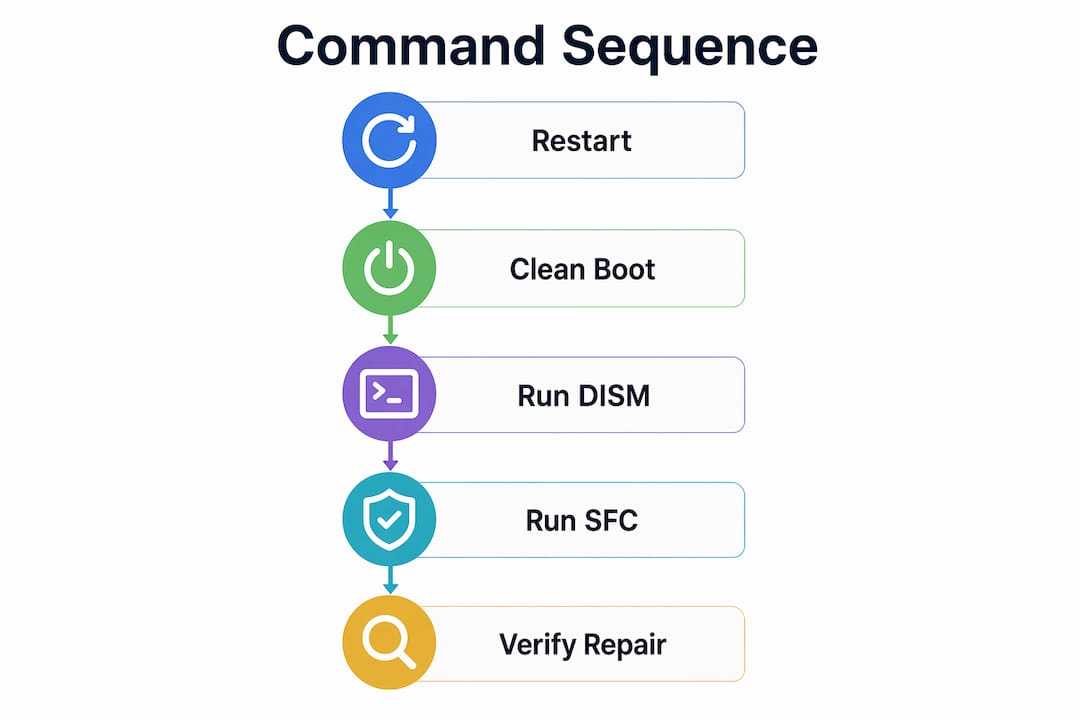
The recommended troubleshooting flow begins with restarting the system, isolating the cause via clean boot, and then applying advanced repairs like SFC, DISM, or System Restore if initial steps fail. Following this sequence prevents you from applying heavy fixes to problems that a simple restart would have solved.
Pro Tip: Before running any troubleshooter, write down the exact error message or code you see. Troubleshooters work faster and more accurately when you can confirm the symptom matches the tool’s scope.
Built-in Windows troubleshooters are the first line of defense in fixing software issues but are not guaranteed to solve all problems. When they fall short, command-line tools are the next step.
How do DISM and SFC fix corrupted system files?
DISM and SFC are the two most powerful built-in commands for repairing Windows system files. Understanding what each one does, and the order you run them, determines whether the repair works.

DISM (Deployment Image Servicing and Management) repairs the Windows Component Store. Think of the Component Store as the master library Windows uses to replace damaged files. If that library is corrupted, any repair attempt using it will fail.
SFC (System File Checker) scans all protected system files and replaces corrupted ones using files from the Component Store. SFC depends entirely on a healthy Component Store to function correctly.
Running SFC before DISM leads to failed repairs because SFC relies on the component store, which is repaired by DISM. Always run DISM first.
The correct command sequence
Open Command Prompt as Administrator (right-click the Start button, select “Terminal (Admin)”):
-
Step 1 — DISM online repair:
DISM /Online /Cleanup-Image /RestoreHealthThis connects to Windows Update servers to download healthy replacement files. It can take 10–20 minutes. -
Step 2 — SFC scan:
sfc /scannowRun this only after DISM completes successfully. SFC will now have a healthy Component Store to draw from. -
Step 3 — Review the log:
SFC writes results to
C:\Windows\Logs\CBS\CBS.log. Open it in Notepad and search for “cannot repair” to find any files SFC could not fix.
Running DISM before SFC repairs the component store first, allowing SFC to function correctly and replace corrupted system files. This sequence resolves system crashes or update failures in approximately 70% of cases.
| Scenario | Recommended tool | Run order |
|---|---|---|
| Windows Update keeps failing | DISM, then SFC | DISM first |
| Persistent app crashes | SFC, after DISM | DISM first |
| Corrupted system files detected | DISM, then SFC | DISM first |
| Offline repair (no internet) | DISM with install media | DISM with /Source flag |
For offline repair when your system cannot reach Windows Update servers, use:
DISM /Online /Cleanup-Image /RestoreHealth /Source:WIM:D:\sources\install.wim:1 /LimitAccess
Replace “D:” with your Windows installation media drive letter.
Pro Tip: If DISM fails with error 0x800f081f, your Windows Update service may itself be broken. The open-source Reset & Repair for Windows Update tool runs a 14-step automated reset of Windows Update components, re-registers DLLs, and generates AI-readable logs for faster diagnosis.
When should you seek professional help for software repair?
Knowing when to stop self-troubleshooting is a skill. Pushing beyond your knowledge level risks data loss, extended downtime, and problems that become harder for a technician to fix later.
Seek professional help when you encounter any of these situations:
- Repeated BSOD errors after running DISM and SFC. If system file repair does not stop the crashes, the cause may be a hardware fault or a deeply corrupted OS that requires reinstallation.
- Data you cannot afford to lose is at risk. A technician can image your drive before attempting repairs, protecting your files.
- Software conflicts you cannot isolate. Some driver and application conflicts require specialized diagnostic software tools that go beyond what Windows provides natively.
- Update failures that persist after DISM. Certain Windows Update errors point to account permission issues or corrupted system partitions that require hands-on access.
- You are not comfortable with the command line. Running the wrong command with Administrator privileges can cause more damage than the original problem.
Certified technicians from organizations like CompTIA provide structured diagnostic and repair processes, ensuring safety and efficacy. Before visiting a repair shop, prepare a written log of your symptoms, the error codes you saw, and every step you already tried. This cuts diagnostic time significantly and helps the technician start from where you left off.
A good repair shop will also tell you upfront whether a software fix is viable or whether a hardware replacement is the more cost-effective path. The top features to look for in a computer repair shop include transparent pricing, certified staff, and a clear process for data protection before any repair begins.
Pro Tip: Back up your data before handing your device to any repair service. Even a software-only repair can go wrong, and no reputable technician will guarantee your data if you arrive without a backup.
Key Takeaways
Effective software repair follows a strict sequence: identify the symptom, use built-in tools in the correct order, and escalate to professional help only when self-repair reaches its limit.
| Point | Details |
|---|---|
| Identify before you repair | Use Event Viewer, Reliability Monitor, and Safe Mode to confirm the cause before changing anything. |
| Update first, repair second | Installing all pending Windows updates resolves many crashes and failures before advanced tools are needed. |
| DISM before SFC, always | Running DISM first repairs the Component Store so SFC can replace corrupted files correctly. |
| Match the troubleshooter to the symptom | Windows 11 offers specific troubleshooters for audio, updates, and networking. Use the right one. |
| Know your limit | Persistent crashes after DISM and SFC, or data at risk, are clear signals to call a certified technician. |
The mistake I see most often in software troubleshooting
Most people who come to me frustrated with their computer have one thing in common: they ran SFC first. It is the most widely shared advice online, and it is wrong in most cases. SFC cannot fix what it cannot read, and if the Component Store is corrupted, SFC will report “Windows Resource Protection could not perform the requested operation” and stop. Then the user assumes the problem is unfixable and either reinstalls Windows or buys a new machine.
The correct order, DISM then SFC, is not complicated. But it requires knowing why the order matters, not just what to type. That is the gap most online guides leave open.
The second mistake I see is skipping the clean boot. People run every repair tool available and still cannot isolate the problem because a third-party startup program is reintroducing the conflict after every fix. A clean boot takes five minutes and eliminates an entire category of causes. It is the most underused step in computer software troubleshooting.
My honest advice: be patient and methodical. Work through the steps in sequence. Document what you tried and what happened. When you do need professional help, that documentation makes the technician’s job faster and your bill smaller. And if you are in Singapore, the repair specialists at Sim Lim Square are worth visiting in person. The in-store tech support experience there is genuinely hands-on, not just a counter where someone takes your device and disappears.
— Aloysius
Sim Lim Square Insider: your next step after self-troubleshooting
When built-in tools reach their limit, Simlimsquareinsider connects you with repair professionals and tech resources at Singapore’s most trusted electronics destination, Sim Lim Square.

Simlimsquareinsider provides store directories, repair service guides, and expert advice across every level of Sim Lim Square. Whether you need a certified technician to handle a persistent OS fault or want hands-on guidance before attempting a fix yourself, the platform points you to the right people. Visit the repair agents directory to find verified repair services and get your software issues resolved by professionals who work with these problems every day. You can also read the laptop repair guide for 2026 for additional context on when repair beats replacement.
FAQ
What is the difference between DISM and SFC?
DISM repairs the Windows Component Store, which is the source library Windows uses to replace damaged files. SFC uses that library to scan and restore corrupted system files, so DISM must always run first.
How do I know if my problem is software or hardware?
Boot into Safe Mode and run a clean boot. If the problem disappears in either mode, a software conflict or driver is the cause. If the problem persists, hardware is more likely responsible.
Can I fix software issues without reinstalling Windows?
Yes. Built-in tools like DISM, SFC, Windows troubleshooters, and System Restore resolve the majority of software faults without a full reinstall. Reinstallation is a last resort, not a first step.
When should I take my computer to a repair shop?
Seek professional help when DISM and SFC fail to stop crashes, when data loss is a risk, or when you cannot isolate the cause after a clean boot. Certified technicians use specialized tools and follow structured processes that go beyond what built-in Windows utilities can do.
What information should I bring to a repair technician?
Bring a written log of your symptoms, the exact error codes you saw, and a list of every repair step you already attempted. This preparation reduces diagnostic time and helps the technician start from an informed baseline.
Recommended
- Laptop Repair in 2026: Fix It Smart, Save More – Sim Lim Square Insider
- Computer Repair Shop Guide: Top 10 Features to Look For – Sim Lim Square Insider
- Mobile Repair Shop Guide: Fast Fixes and Quality Parts – Sim Lim Square Insider
- Electronics Repair Process at Sim Lim Square: Your Guide – Sim Lim Square Insider